
Showing posts with label Tips. Show all posts
Showing posts with label Tips. Show all posts
Wednesday, May 15, 2013

Thursday, May 2, 2013
How to Set the Captions or Letters on Desktop Icons to Transparent in Windows XP?
Have you ever wondered why is your XP Desktop icons have a background
color,
Here you’ll be glad to know you can tick a checkbox and have them go back to a normal clean transparent background.
See the two below:
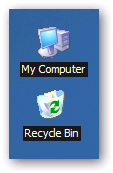
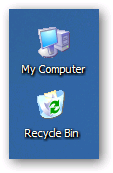
To set the transparent background on the icons, we’ll need to open System Properties in Control Panel (or right-click on My Computer and select Properties).
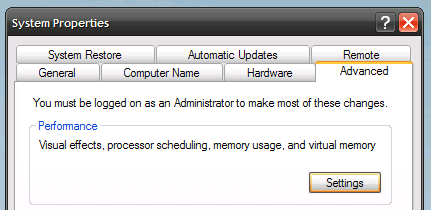
In this dialog, click the Advanced tab, and then the Settings button under the Performance section.
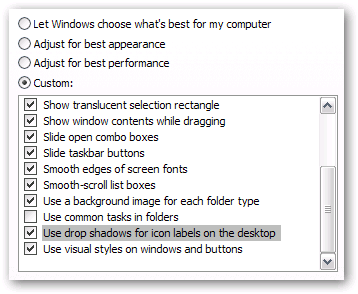
Now scroll down to the button where you’ll find a checkbox for “Use drop shadows for icon labels on the desktop”. Make sure you check this box if you want transparent backgrounds on the icons.
Why this option isn’t just labeled “Enable Transparent Icons On the Desktop”, I just can’t say.
Thank You
Here you’ll be glad to know you can tick a checkbox and have them go back to a normal clean transparent background.
See the two below:
To set the transparent background on the icons, we’ll need to open System Properties in Control Panel (or right-click on My Computer and select Properties).
In this dialog, click the Advanced tab, and then the Settings button under the Performance section.
Now scroll down to the button where you’ll find a checkbox for “Use drop shadows for icon labels on the desktop”. Make sure you check this box if you want transparent backgrounds on the icons.
Why this option isn’t just labeled “Enable Transparent Icons On the Desktop”, I just can’t say.
if checking it doesn’t fix your problem there is another step you must do. Follow this procedure:
Control Panel > Display > Desktop > Customize Desktop > Web > Uncheck everything here > OK > Apply
Thank You
Monday, April 29, 2013
How to Read Product Bar Codes?

Always read the labels o the foods you buy
No Matter what the front of the Box or Packages Say, Turn it over and Read the Back Carefully!
With all the food and pet products now coming from China, it is best to make sure you read label at the supermarket and especially when buying food products. Many products no longer show where they were made, only give where the distributor is located. The whole world is concerned about China-made "black-hearted goods".
Can you differentiate which one is made in Taiwan or China ? The world is also concerned about GMO (Genetically Modified Organism) foods; steroid fed animals (ex: 45 days old broiler chicken).
It is important to read the bar code to track its origin. How to read Bar Codes....interesting !
If the first 3 digits of the bar code are 690, 691 or 692, the product is MADE IN CHINA.
471 is Made in Taiwan .
If the first 3 digits of the bar code are 00-09 then it's made or sourced in USA.
This is our right to know, but the government and related departments never educate the public, therefore we have to RESCUE ourselves. Nowadays, Chinese businessmen know that consumers do not prefer products "MADE IN CHINA", so they don't show from which country it is made. However, you may now refer to the barcode -
Remember if the first 3 digits are:
890......MADE IN INDIA
690, 691, 692 ... then it is MADE IN CHINA
00 - 09 ... USA and CANADA
30 - 37 ... FRANCE
40 - 44 ... GERMANY
471 ........ Taiwan
45 or 49 ........JAPAN
489...........HONG KONG
50 .......... UK
57 .........DENMARK
64..........FINLAND
76.........SWITZERLAND and LIENCHTENSTIEN
471......... is Made in TAIWAN (see sample)
628.........SAUDI ARABIA
629.........UNITED ARAB EMIRATES
740..........745 - CENTRAL AMERICA
All 480 Codes are Made in the PHILIPPINES. Share it!
Thank You
Saturday, April 27, 2013
How to Auto Log-Out from Facebook after a Certain Time (Firefox Browser)

How to Auto Log-Out from Facebook after a Certain Time (Firefox Browser)
STEP 1. -
To use this trick first of all you need mozilla firefox as your default browse.
STEP 2. -
Now install Facebook Auto-Logout extension to your mozilla firefox.
STEP 3. -
Now open extension menu press CTRL+SHIFT+A & set your time limit of auto logout (default time is 5 min)
Install Facebook Auto Logout Extension Firefbox Click this links: https://addons.mozilla.org/en-US/firefox/addon/facebook-auto-logout/
Friday, April 26, 2013
Facebook Users Must Read This

Its Very Important if you do this preventive measures:
1. Keep separate password for email address and Facebook ID.
2. Enable Mobile Protection using your Parents' Mobile Number.
3. Edit Profile and Hide your Friends List, Relations, Mobile No., Email ID - ONLY ME.
4. For Rest, in Edit profile Select - Friends only.
5. In privacy settings - App/Games/Website - disable Public Search. Turn off all Spammy Apps.
Thank You
Subscribe to:
Posts (Atom)